

This Huawei Shopee guide keeps the process simple: update Messenger, fix common install issues, and make sure your Huawei phone is ready for smooth notifications.
If Messenger feels stuck, missing features, or slow to sync, the solution is usually inside AppGallery or just one system setting away.
Update Messenger from AppGallery
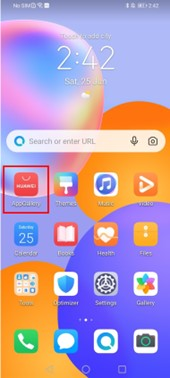
The fastest and most reliable method is to use Huawei AppGallery.
1. Open AppGallery on your Huawei device.
2. Tap Me in the bottom-right corner.
3. Select App updates.
4. Find Messenger and tap Update.
If Messenger is already installed, this is the best way to pull the latest version without extra steps.
For the original community reference, open Huawei Shopee.
Install Messenger for the First Time
If Messenger is not on your phone yet, you can install it directly from AppGallery:
1. Open AppGallery.
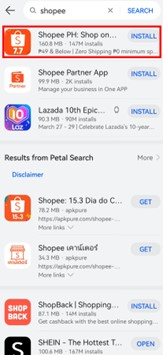
2. Search for Messenger.
3. Tap Install.
This keeps the app source consistent and avoids version conflicts later.
If you want a quick bookmark for the same guide, Huawei Shopee points back to the Huawei Community thread.
If the Update Gets Stuck
Sometimes the app will not update because the download source is wrong or the installation is incomplete.
In that case:
– Remove the app version you have now.
– Reinstall Messenger from AppGallery.
– Try the update again after reconnecting to a stable network.
– Check that your phone has enough storage and battery.
A fresh install often clears hidden update errors and restores normal performance.
Try GBox if You Need an Alternative
Some users prefer a backup method when an app is not listed the way they expect.
In that case, GBox can help with installation and updating.
It is worth using when you want a secondary route, especially if you are comparing app access options across Huawei devices.
If you follow this path, keep in mind that AppGallery should still be your first choice.
GBox works as a practical alternative, but AppGallery remains the cleanest source for updates.
Keep the Phone Software Current
Messenger can only run as smoothly as the device around it.
Before blaming the app, check your system version:
1. Go to Settings.
2. Open System & updates.
3. Tap Software update.
4. Install any available update.
A recent system version can improve app stability, push notification delivery, and overall compatibility.
On Huawei phones, this is often the difference between a laggy app and a normal one.
Fix Missing Messenger Notifications
If Messenger updates correctly but still does not alert you, the issue is usually in the notification settings:
1. Go to Settings.
2. Open Notifications & status bar.
3. Search for Messenger.
4. Turn on Allow notifications.
You can also check battery optimization and background app permissions if messages arrive late.
That small adjustment can make Messenger feel far more responsive.
When an App Is Not in the Store
Some users look for apps that do not appear in AppGallery right away.
Huawei’s recommended starting point is still AppGallery, but GBox may help when you need broader app access.
For apps like Netflix and similar services, the same logic applies: start with the official store, then use a trusted alternative if needed.
Need Help?
If Messenger still refuses to update, scan the Huawei support QR guide, or open customer support for a step-by-step walkthrough on app installation, notification setup, and software updates.